 Up
UpSearches and Results
§1 Introduction
Zator has a powerful search system that allows locate any item in its data structure containing a particular text. The system lets a high granularity, allowing to define exactly what area will be used the process. I.e, the search can be extended to the entire contents of a dBase, or just one of its fields. The system responds to the following schedule
- Search in dBase
- Search in Titles
- Search in Logbooks
- Search in Notes
- Search in e-Addresses
- Search in Extended data
- Search in Picture frames
- Search in all previous ones
- Search in Scheduling
- Search in Appointments
- Search in Expiry dates
- Search in Pending try
- Search in Events (ephemeris)
- Search in all previous ones
- Search in Postbox
- Search in In-box
- Search in Sent-box
- Search in To-send-box
- Search in all previous ones
- Search in all areas (includes all in the three areas above)
Besides the above, dBase has some additional ways:
- Search in an Extended field as index (the field should begin by the prescribed)
- Search in an Extended field by content (the field should contain the text prescribed)
- Search in the hierarchy of an item (you can define what elements of the items in the hierarchy will be involved in the process)
- Search the items of a group (as in the previous one, you can define what elements of the items in the group will be involved in the search)
- Look up words in a specific Note field.
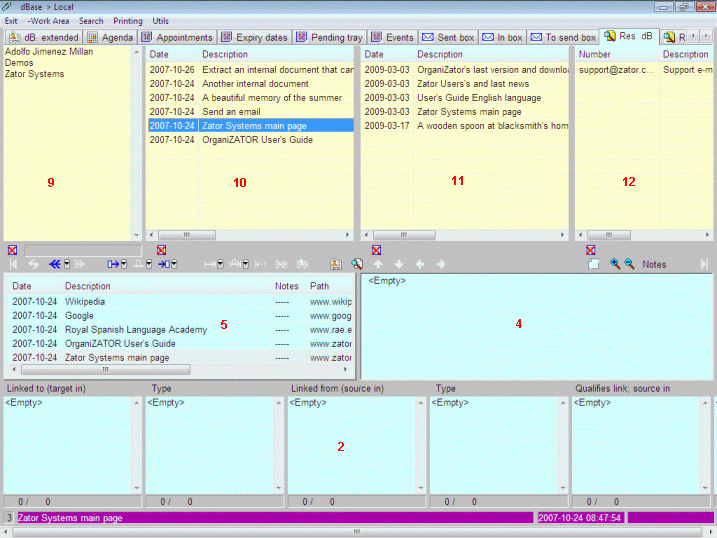
Figure 1
§2 Search switch
The searches can be performed in two ways, depending on whether or not distinguish between upper and lower case. This behavior depends on the state of a case-sensitivity switch (ON/OFF) controlled by the first option in the Search menu of the menu bar. Initially this switch is disabled, so that the switch is turned off and searches are not case-sensitive.
 Note that the state of this switch does not just affect searches, also to all operations that involve comparing strings in dBase.
I.e, the
generation of a Dictionary.
Note that the state of this switch does not just affect searches, also to all operations that involve comparing strings in dBase.
I.e, the
generation of a Dictionary.
The other options do not require further comment; any of them leads to a window where you can enter text to search. Once the search is performed, is obtained information on the number of new matches found (*) and the location of the items on which there have been concordances.
(*) Pay attention to the fact that the searches are cumulative, meaning that previous search results do not disappear with the next, but on the contrary, the new results are added to the previous without the appearance of duplicates, since each search only adds those that not exists earlier in the window. If necessary, before a new process, is always possible to delete the contents of the result windows with the buttons arranged for that purpose (see below).
§3 Result's windows
There are three tabs to hold the results of searches in the three areas of application:  dBase results;
Scheduling results and
Postbox results. In turn, each of these tabs includes various windows to contain the results in the individual components. Figure 1 shows the appearance of the first of these tabs with
the results windows (with yellow background) it contains.
dBase results;
Scheduling results and
Postbox results. In turn, each of these tabs includes various windows to contain the results in the individual components. Figure 1 shows the appearance of the first of these tabs with
the results windows (with yellow background) it contains.
The windows of results correspond to the following schedule:
- Tab of dBase results
- Found in Titles; Notes and Extended data (9)
- Found in Logbook (10)
- Found in Frame holder (11)
- Found in eDir (12)
- Tab of scheduling results
- Found in Appointments
- Found in Expiry-dates
- Found in Pending-try
- Found in Events (ephemeris)
- Tab of postbox results
- Found in Sent-box
- Found in In-box
- Found in To-send-box
Note that all these result windows have a corresponding tooltip that helps you remember at all times
what results are watching. In addition, the pop-up menus who appears by right
clicking with the mouse on the result items, allow several interesting options.
Remember that the "delete" options in the result windows (in yellow) refers to
erase the element of the output window, but not the element itself (the deletion does not affect the continuity of the element in the dBase).
If necessary, the buttons  under each window, allow "clean" the actual content, leaving it empty for new searches.
By clicking with the mouse on any item in the result windows, the lower status line displays the title and
creation and modification dates of the element. While the windows of Note
(4); of Logbook (5) and
Links (2) show if
appropriate (*), the corresponding elements of the selected item. If you clicked on an
item of the results in Logbook (window 10), the window
5 shows all the elements of the logbook to which the item belongs, so that the line can be seen in context.
(*) Remember that some elements lack Note field; Logbook or links. I.e, eDir items
lacks of those possibilities, while Scheduling elements (Appointments; Expiry
dates; Pending try and Ephemeris) can hold Note and Links, but no Logbook.
 Top
Top