 Up
UpStarting Zator
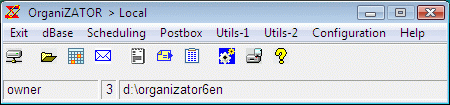
Figure 1. |
§1 Initial start
If we used the default installation options, when starting OrganiZATOR, it appears
the main window ( M1) shown in Figure 1.
The bottom line, which we call the status line,
from left to right contains the user name with which we have accessed (default is
the user owner); its access level (3 in the figure), and the local
directory where the executable is -which defaults to the
directory C:\Program Files\Zator Systems\OrganiZATOR6en [1],
but in the example the application has been installed in D:\OrganiZATOR6en.
M1) shown in Figure 1.
The bottom line, which we call the status line,
from left to right contains the user name with which we have accessed (default is
the user owner); its access level (3 in the figure), and the local
directory where the executable is -which defaults to the
directory C:\Program Files\Zator Systems\OrganiZATOR6en [1],
but in the example the application has been installed in D:\OrganiZATOR6en.
The caption bar contains the name of the program OrganiZATOR, followed by an arrow (>) and the word Local, indicating that currently, the main zone is connected to the local dBase (file D:\OrganiZATOR6en\zDB1 in the example). When connect to some remote area, the word Local is replaced by the alias of the area connected; the status-line changes to show the new path and the user access-level in the area connected.
§2 Working session
Each working session (between beginning and end of the application) is carried out with a user identity that kept unchanged over the session (the identity appears in the left field of the status line). Except order to the contrary, default entering is as owner if the password for the user is disabled, or as a guest if that password is disabled. If both keys are activated (are distinct of 'DISABLED'), Zator presents the option to include a username and a password (figure 2). If the identification is positive, the access is granted with the identity and level of access previously assigned to that user (when created).
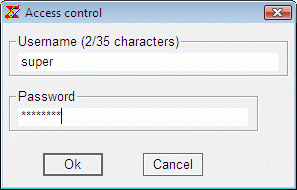
Figure 2. |
 Related topic: creating
new users.
Related topic: creating
new users.
It is possible to go straight with a certain identity from the arguments
passed to the application at the time of start.
C:\zator\zator6> zator6.exe /Uusername
Where username is the user name with which we want access. In this case, at the start of the application, the password for that user will be requested.
The argument /P allow order to use as local area other than the one that exists in the directory of the executable:
C:\zator\zator6> zator6.exe /PD:\utils\books
In this case, instead of using for the local area the zDB1 file existing in the directory C:/zator/zator6, where the executable reside, the file used will be the zDB1 existing in the path D:\utils\books, that appear on all the effects as the local area of the application.
Besides the above, it is also possible to use any of the following arguments in the init command:
- /N Do not show the Scheduling at the start, although the corresponding switch is selected on Initial Parameters.
Related topic: creating
working areas.
Once gained the initial access, when connecting to other areas, if the user is registered in the new area
with the same name and password that in the local one, the access is automatically
granted. If the level of the user access in the new area is smaller than it has in
the current area, the rights will be reduced correspondingly, recovering the
initial level at the time of returning to the local area. If the user is not
registered in the new area, access will be rejected, unless the area has enabled
some of the public accesses (password of the owner or guest users has been made equal to
DISABLED).
At the start, the initial screen (main zone) is always connected with the local area. From here, access to the Scheduling, Postbox or dBase zones happen also in the local area, but once initiated, you can connect these zones with other areas using the option Work area of the window's menu (the main zone will remain in the local area). Thus at any given time, each of the four zones can be connected to a different area.
 Top.
Top.[1] OrganiZATOR has no preference as to the installation directory, which can be anyone. Usually is a bad idea to install user applications in the C: drive, which usually hold the System. Within the specific possibilities of the hardware, we believe it is advisable to use a separate volume directory; D:, E:, etc. to install applications and user files. Anyway, always use a unique and specific directory for each installation of Zator. If it is possible, on a volume and directory where can give write access to those users who can share their data, without this involves compromise the system security.